Assign/Unassign an Assignment - The KWL Hub
Assign an Assignment
Once an assignment has been created, the teacher needs to assign it to their Class(es), Student(s), or Group(s).
❗ Note: If the assignments are not assigned to students, students won't be able to view the assignments.
Follow the steps below to assign an assignment to your students:
1. Log in to the KWL Hub.
2. Click on "Assignments" on the left-hand side menu.
3. Click on "Create Assignment."
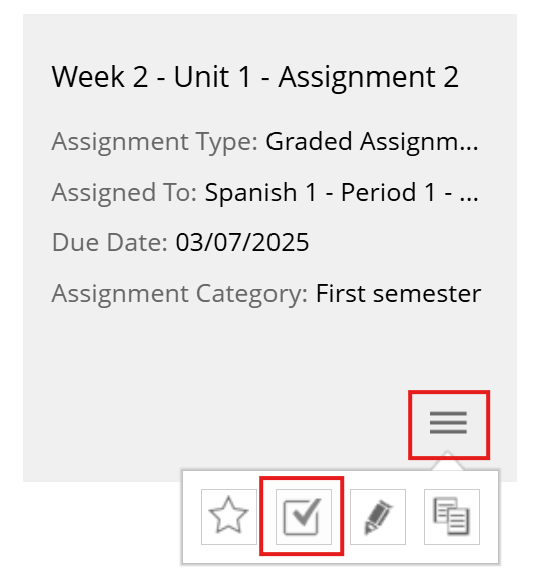
4. Click on the "☰" hamburger menu of the assignment you need to assign.
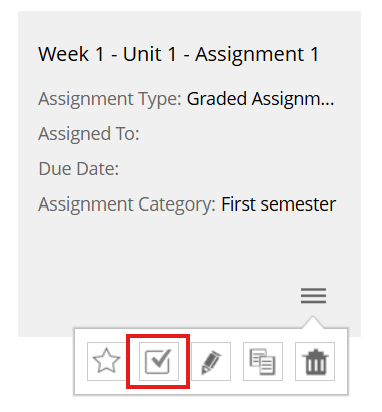
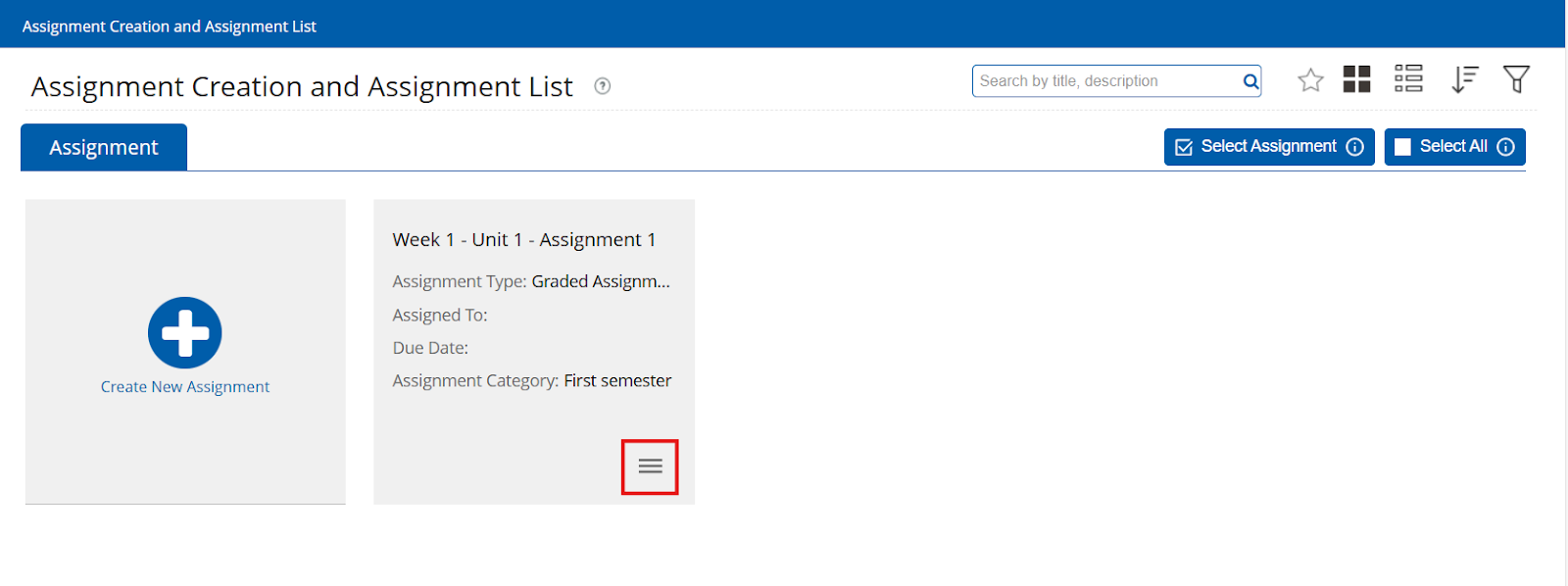 5. Click on the "☑" Assign button.
6.🧑🎓 Select the class(es), group(s), or student(s) you need to assign the assignment to by typing the name of the class, student or group in the corresponding field.
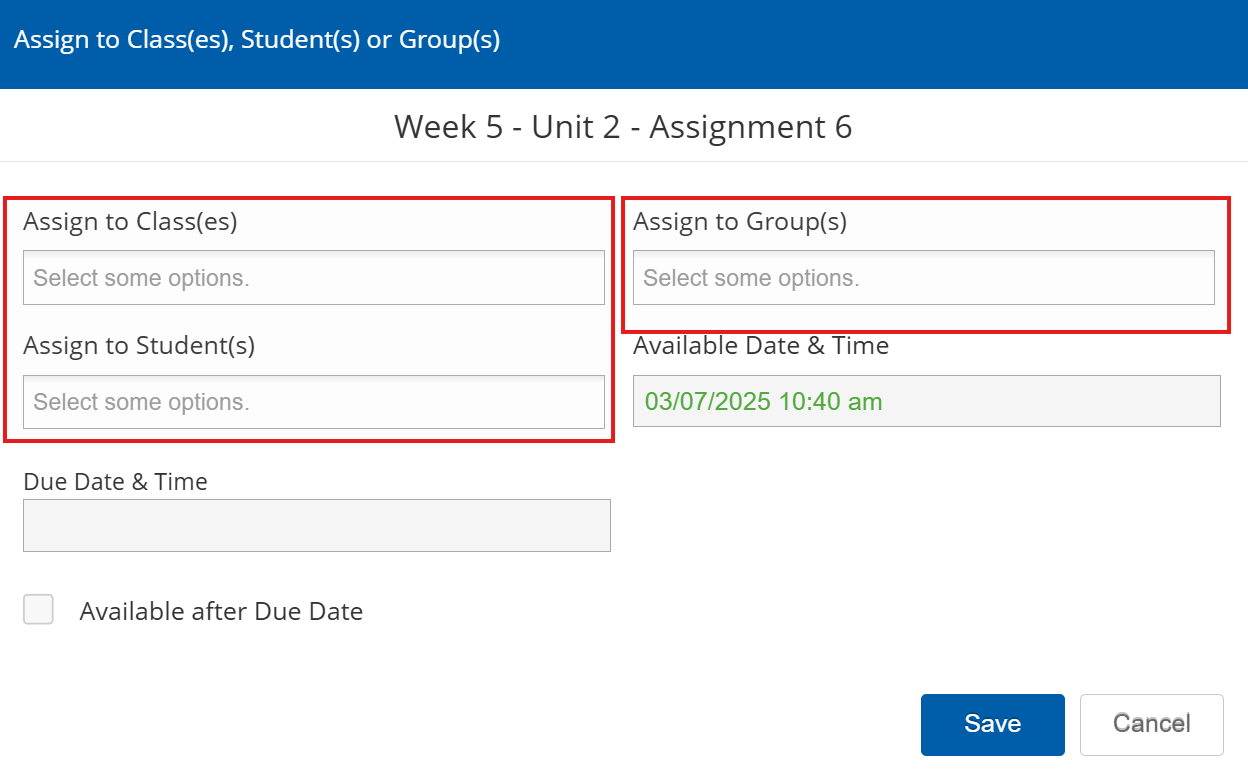
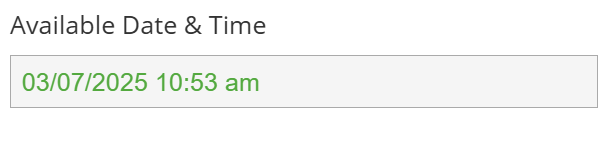
7. ⏳ Select the "Available Date & Time." This is the date and time on which the assignment will be available for students to complete.
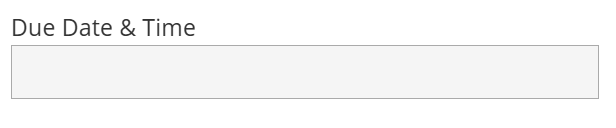
8. ⏳ Select the "Due Date & Time." This is the date and time the assignment will close for students. Leave this field blank for an open due date.
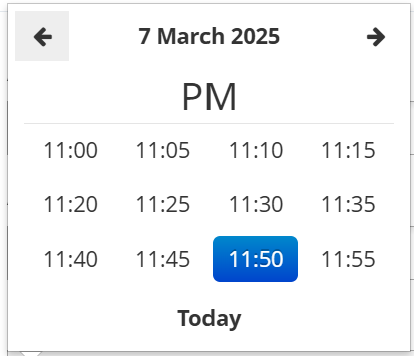
❗ Note: Bear in mind that the due time is divided into 5-minute blocks. The latest possible time to assign an assignment is 11:55 PM.
Check the "✅ Available after Due Date" checkbox for students to have access to the assignment after the due date.
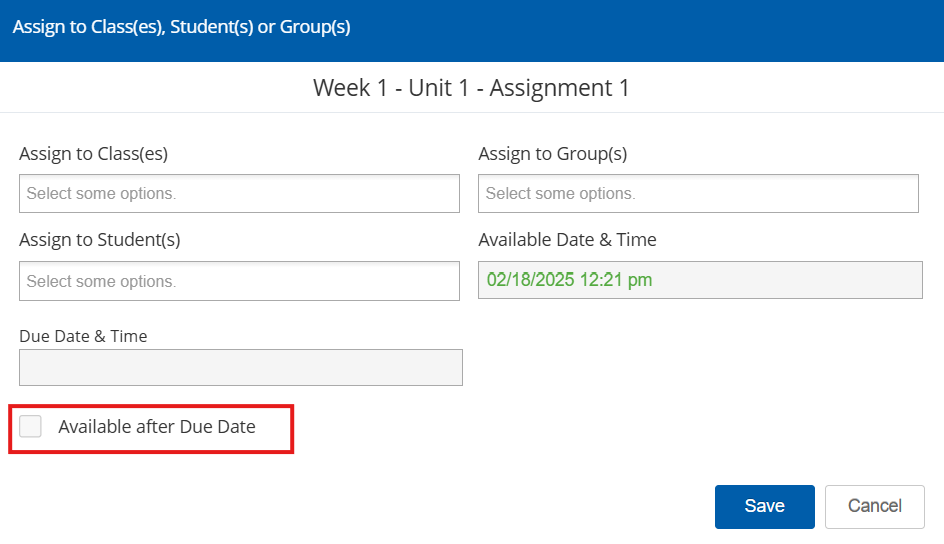
❗Note:If this checkbox is not checked, the students will not be able to access the assignment after the due date.
9. Click "Save" to save your settings and assign the assignment to the selected class(es), group(s), or specific student(s).
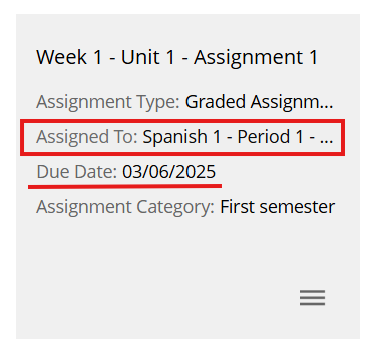
You can now see the class the assignment has been assigned to as well as the due date:
Unassign an Assignment
To unassign an assignment, follow the steps below.
1. Find the assignment you need to unassign and click on the "☰" hamburger menu.
2. Click on the "☑" Assign button.
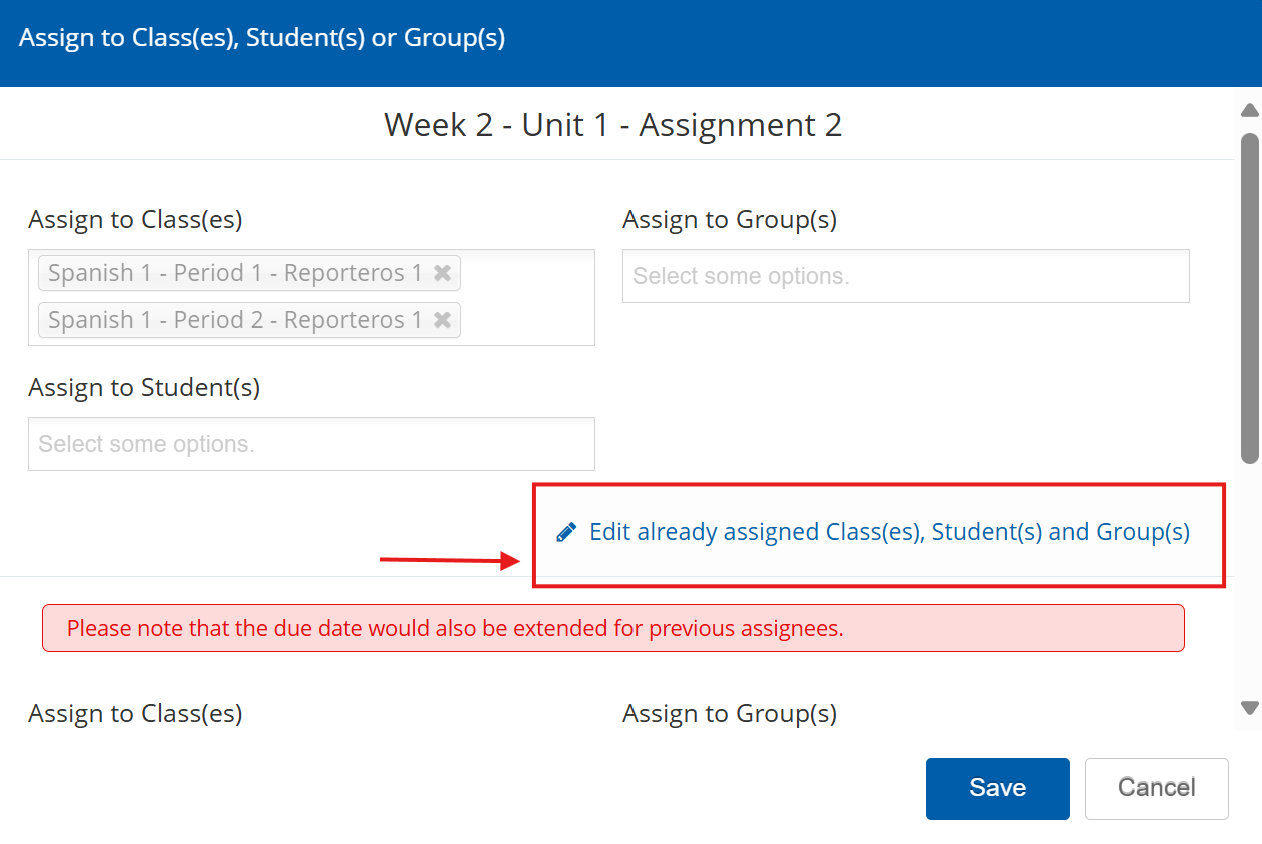
3. In the Assign menu pop-up, click on "✏️ Edit already assigned Class(es), Student(s) and Group(s)." This will allow you to edit and unassign the classes.
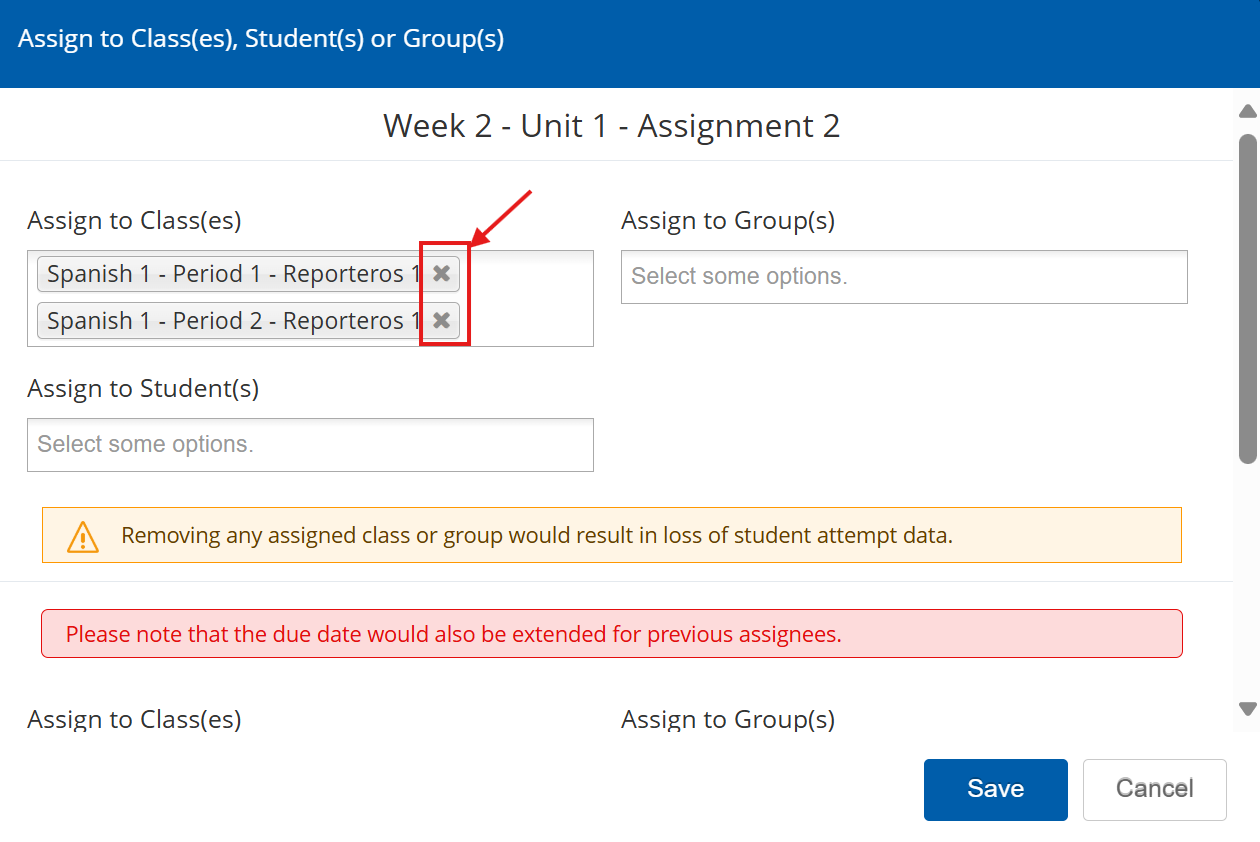
4. Click the "X" next to the Class(es), Student(s), or Group(s) to unassign the assignment.
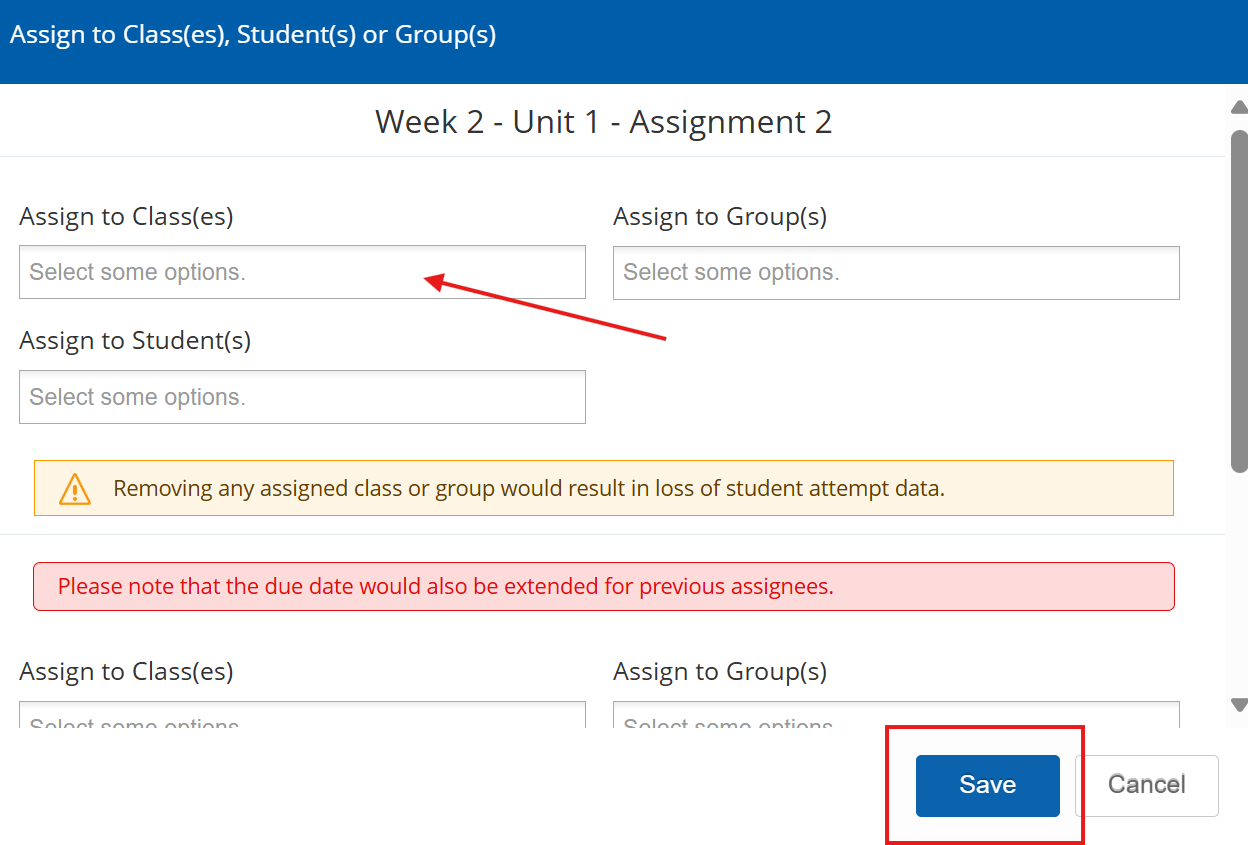
 5. Now that the classes are not showing up, you need to click on "Save."
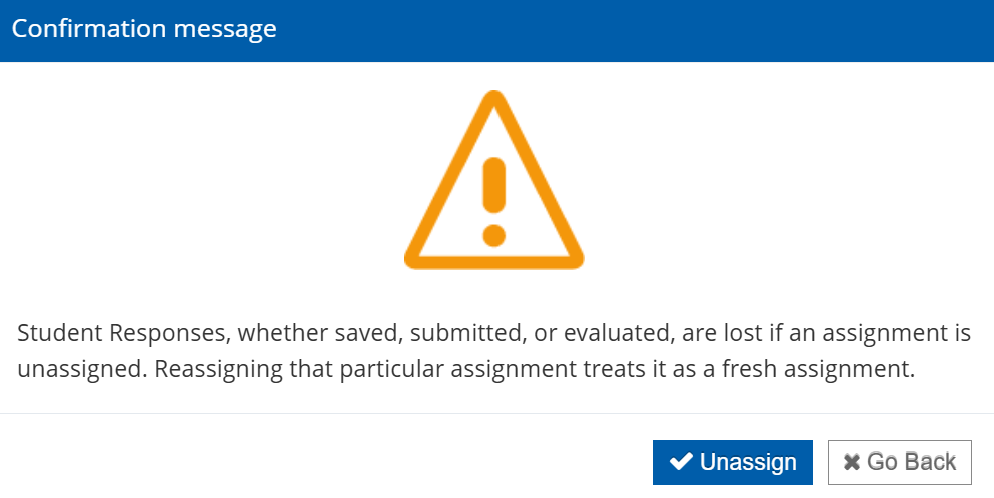
⚠️ Note: You will receive a warning message letting you know that when you unassign an assignment, all student responses and grades will be lost. Click on 'Unassign' if you still wish to proceed.
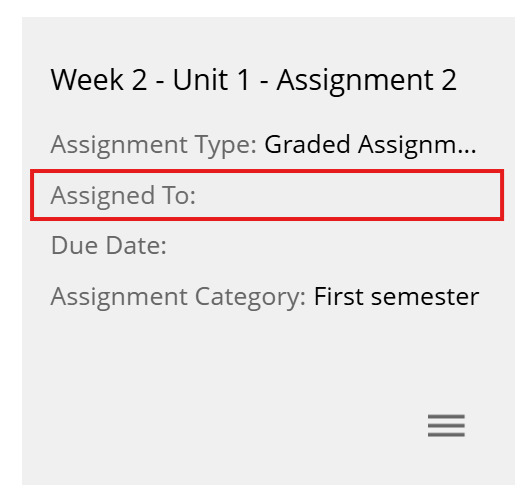
6. As you can see, the assignment is now unassigned from all Class(es), Student(s), or Group(s).
Need help? 
Remember, you can contact us this support form. We are here to help!
Related Articles
Creating a New Assignment in the KWL Hub
https://support.thekwlhub.com/en/articles/223-create-a-new-assignment There are two ways of creating assignments: from the "Assignments" section and from the Interactive Content: Creating Assignments from the "Assignments" Section Creating ...Assignment Settings
https://support.thekwlhub.com/en/articles/189-assignment-settings You can set the settings of an assignment when creating or editing an assignment by following the next steps. ❗Note: Once you save the settings for one assignment, the same settings ...Assign/Unassign a Book to a Class
https://support.thekwlhub.com/en/articles/156-assign-unassign-a-book-to-a-class Assign a Book to a Class If your district/school is using an integration tool on the KWL Hub (such as Clever, ClassLink, Google Classroom, etc.), teachers can assign ...Teacher Guide: The KWL Hub and Canvas
Accessing the KWL Hub via Canvas Creating assignments with Canvas (Deep Linking) Importing Grades into Canvas Accessing the KWL Hub via Canvas 1. In Course Navigation, navigate to the Assignments tab. 2. Click on the assignment title "KWL Hub" or ...Teacher Guide: Accessing The KWL Hub via Moodle
https://support.thekwlhub.com/en/articles/173-how-to-access-the-kwl-hub-via-moodle Enabling the KWL Hub app in your course 1. Log into Moodle with your Teacher user credentials. Navigate to the course in which you would like to use the KWL Hub ...