Teacher Guide: The KWL Hub and Canvas
1. In Course Navigation, navigate to the Assignments tab.

2. Click on the assignment title "KWL Hub" or "KWL Hub book launch" to launch the platform.
Note: If you do not yet have a launchpoint assignment, contact your school admin. Teachers can also create a launchpoint assignment by following the Optional: Create Assignments section in this article below.
Note: Be sure to click "launch in a new tab" to open the full KWL Hub platform.

3. The KWL Hub platform will open in a new tab/window.
1. Open your KWL Hub teacher account
❗Note: Users with a KWL Hub / Schoology integration should always log into the Hub via Schoology. See our Teacher Guide for more information.
To launch The KWL Hub via Schoology, you will first need to log into your Schoology teacher account. Navigate to your language course by clicking Courses, and then select the relevant course.
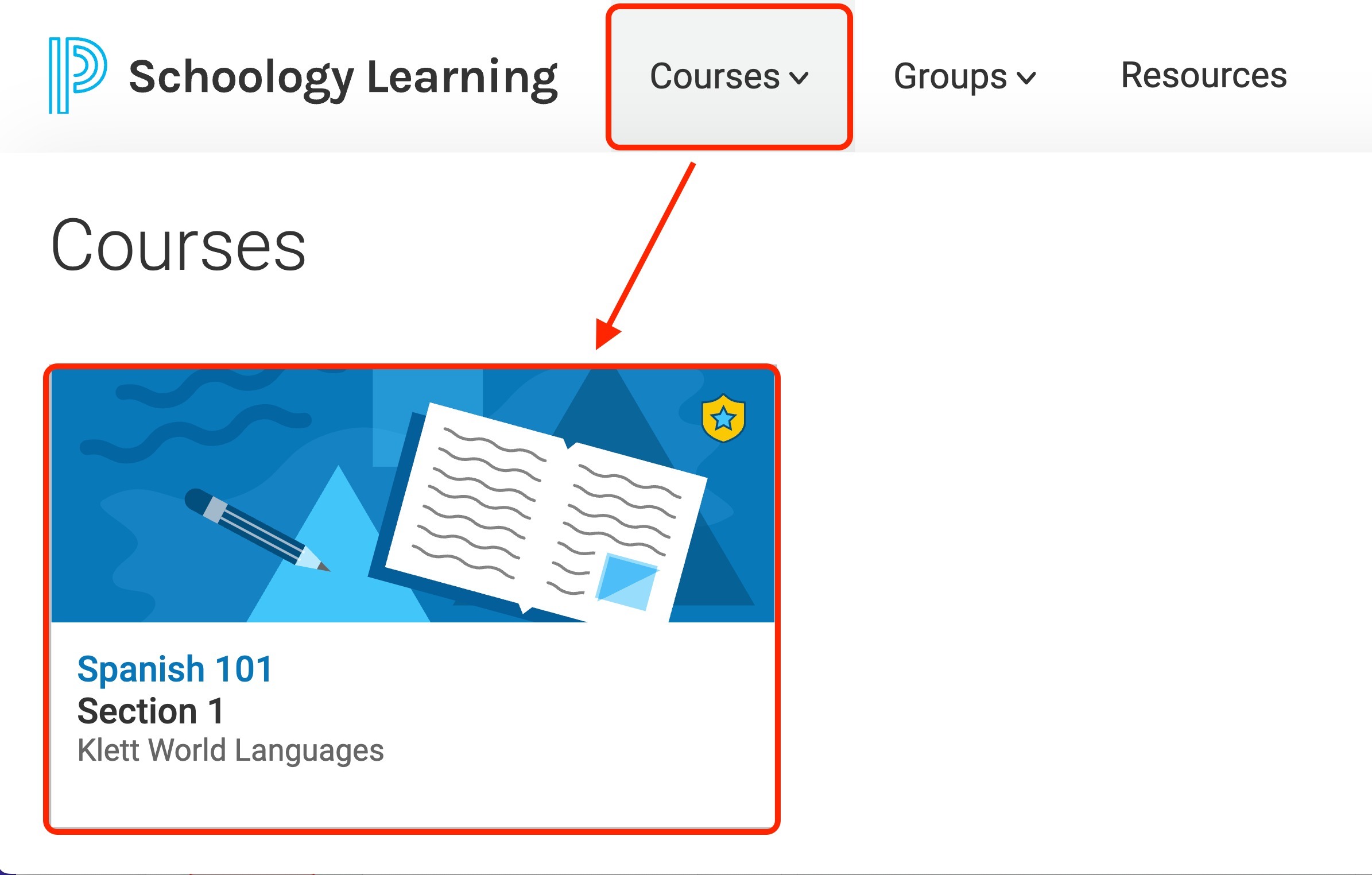
Find the KWL Hub in the left-hand menu OR under the KWL Hub LaunchPoint. Click to open your teacher account on the Hub. (If you don’t see the Hub, contact your admin to have it added to your course.)
STEP 1
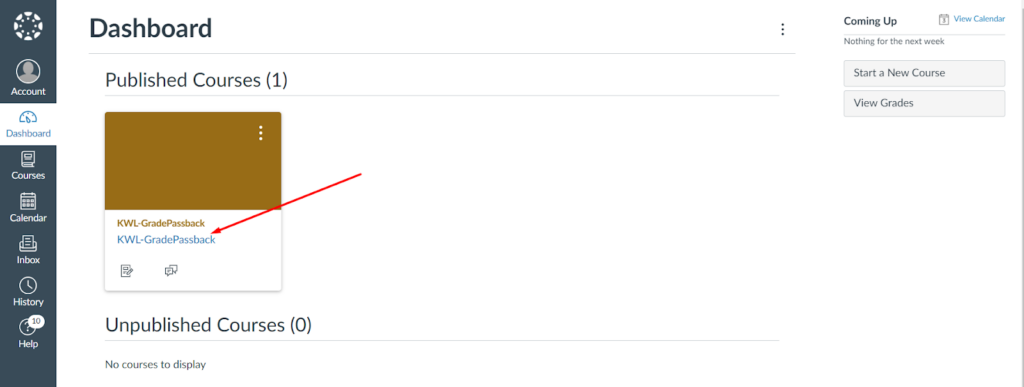
STEP 2
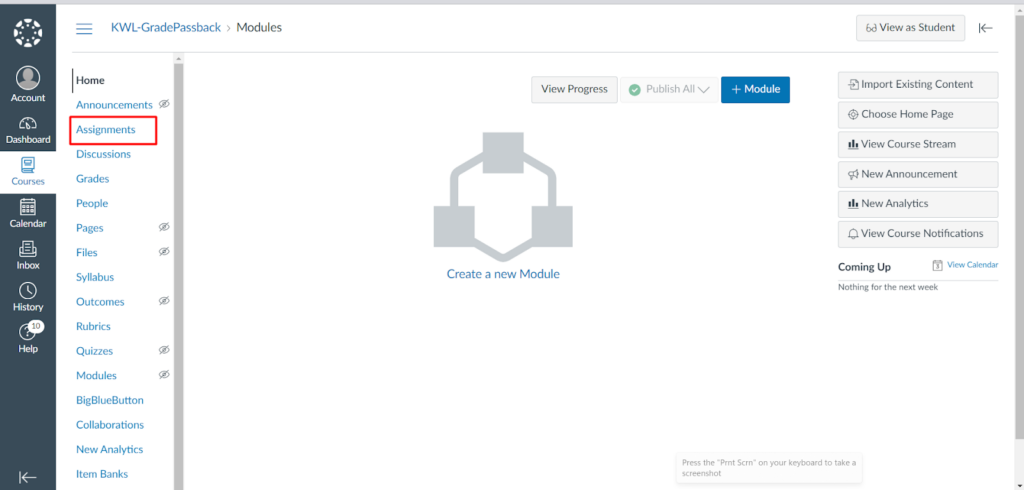
STEP 3
If you don’t see it, please contact your LMS administrator. You can also refer to this link.
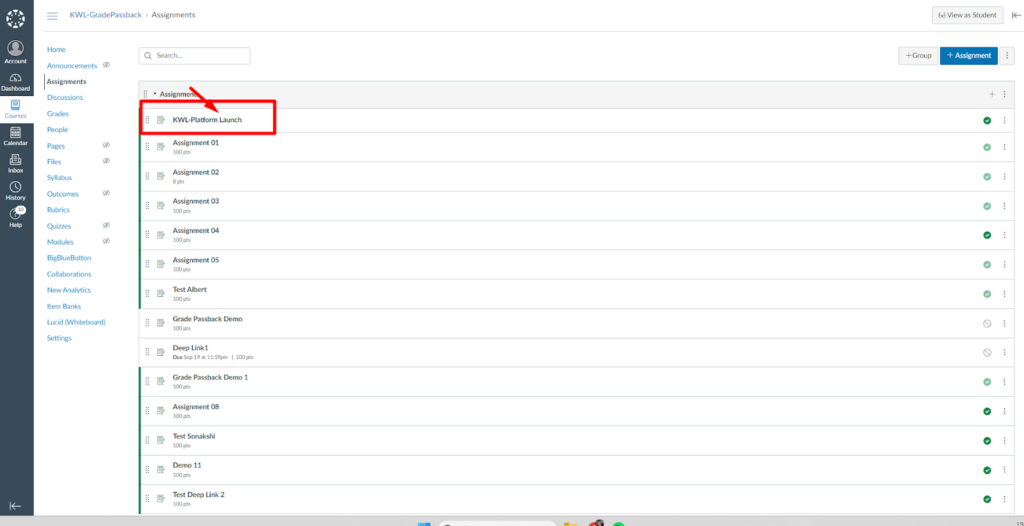
STEP 4
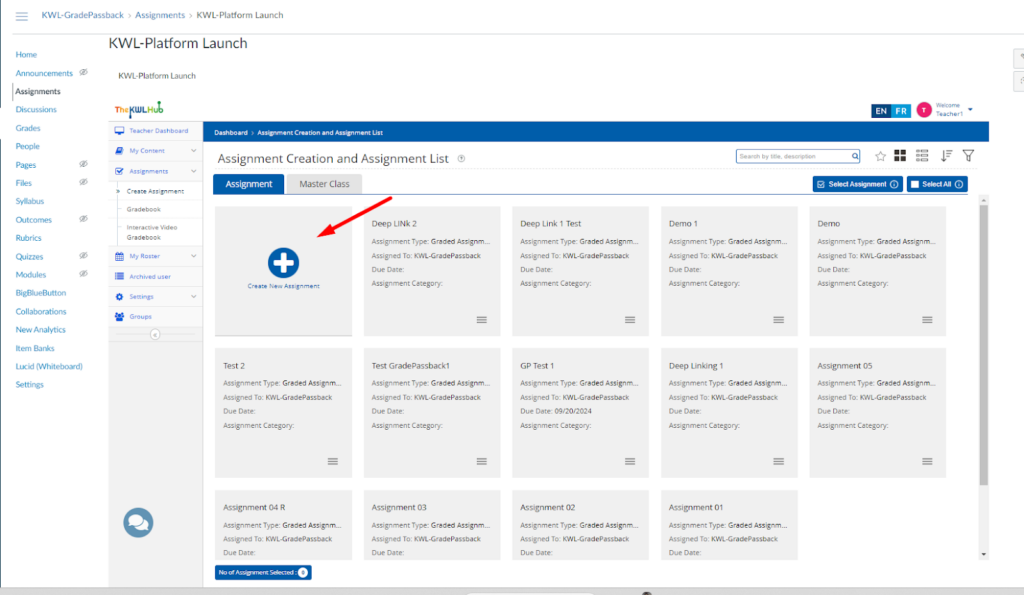
STEP 5
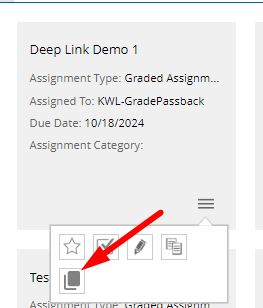
STEP 6
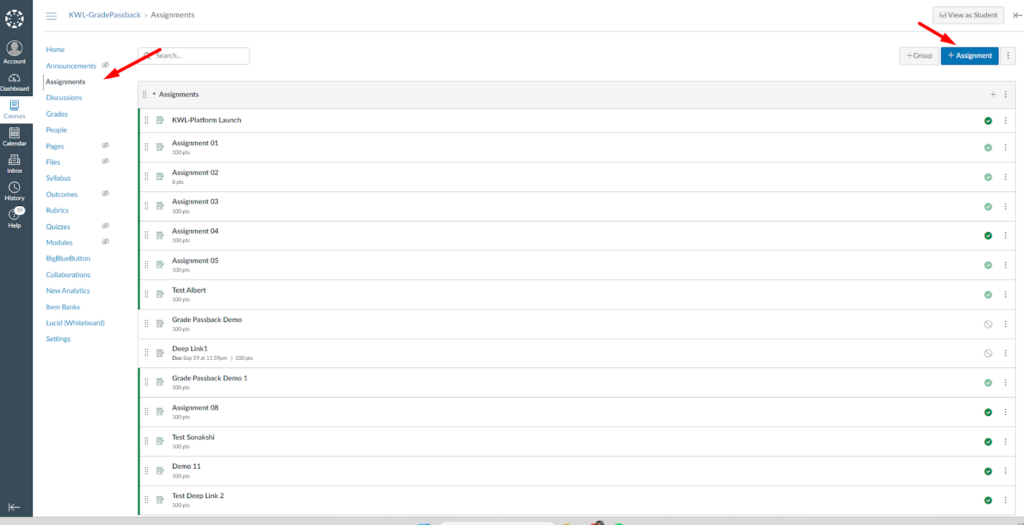
Click on Assignments and then on +Assignment to start creating your Assignment in Canvas.
STEP 7
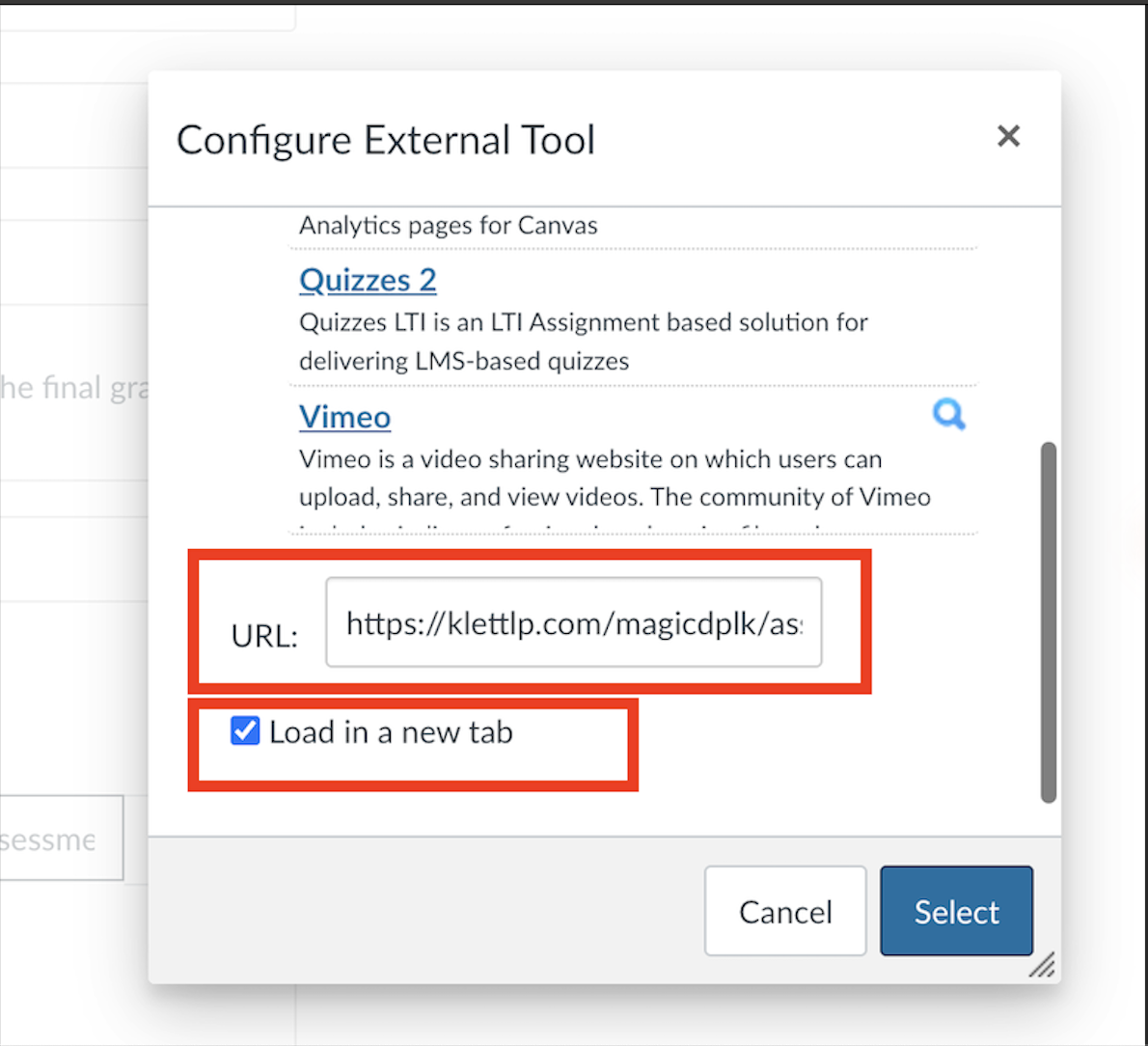
To paste it, under Submission Type, select External Tool. Click Find.
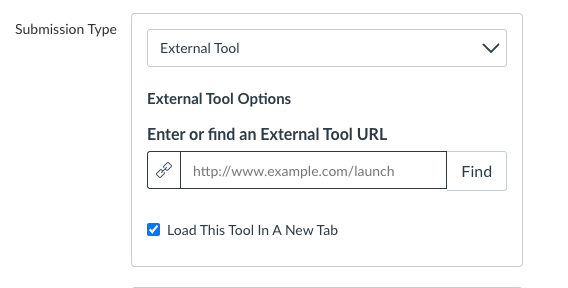
In the window that opens ("Configure External Tool"), first click on "The KWL Hub" to select the tool.
Then, scroll further down and locate the URL textbox. In this box, paste the URL that you previously copied using the Deep Link button.
We recommend also checking "Load in a new tab", as the platform performs best in a new tab.
Finally, click Select to save your link settings.
STEP 8
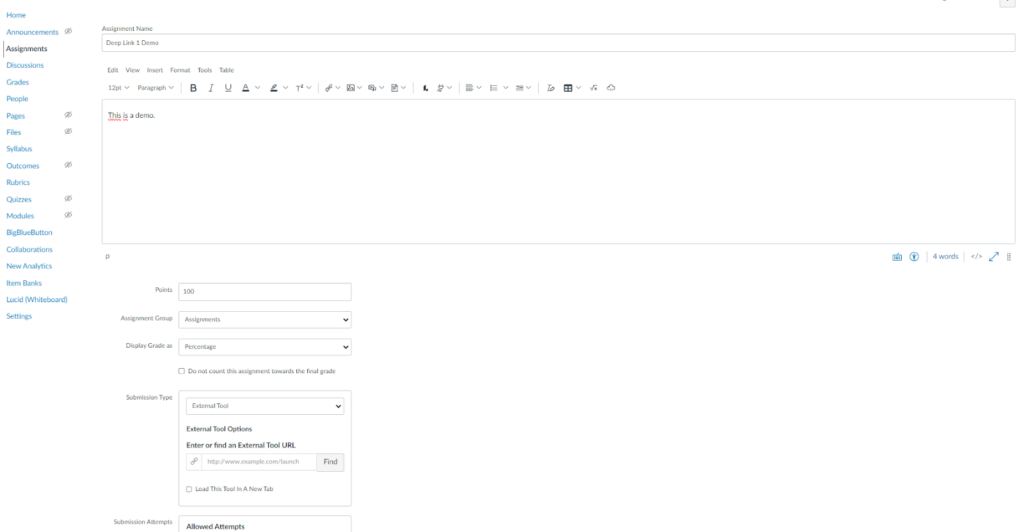
In this section, you can define fields such as the score, groups, how you want the score to be displayed, the due date, and other fields.
STEP 9
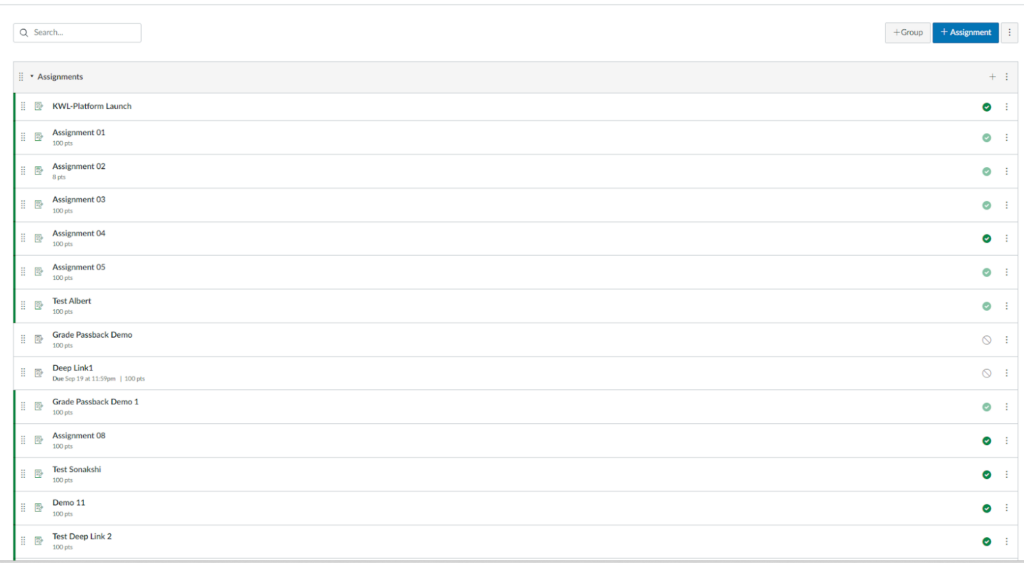
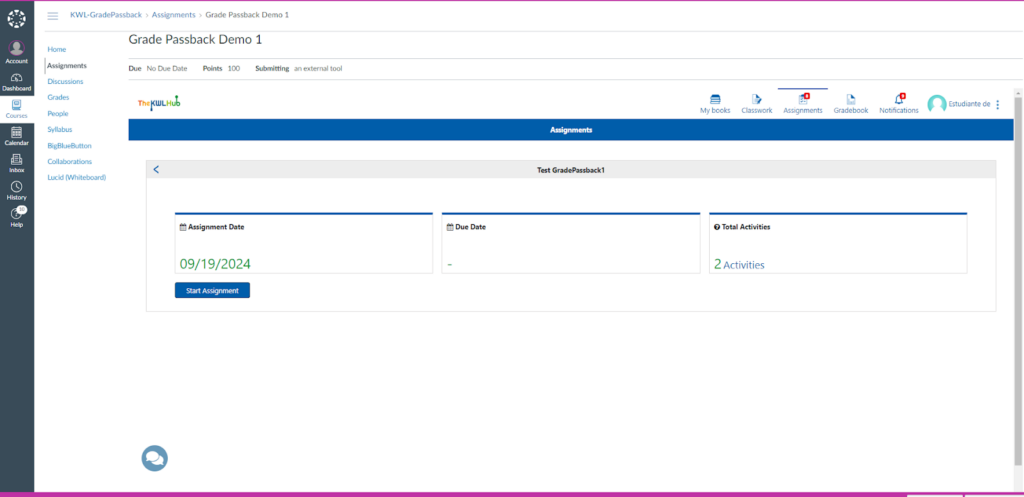
Once the assignment is published, it will be visible on the Assignments dashboard.
The KWL Hub enables teachers to download gradebook information from their KWL Hub gradebook and then upload (import) them into their school's preferred grading tool.
When you enter grades in your LMS (such as Canvas, Google Classroom, Blackboard, etc.) or SIS (PowerSchool, Skyward, Infinite Campus, etc.), you can use this feature of the KWL Hub to simplify your grading process and reduce your workload.
First, refer to our article Exporting Grades from the Gradebook to learn how you can export your grades as a CSV file (spreadsheet format).
Then, Canvas users can refer to the Canvas support article "How do I import grades in the Gradebook?" to import the CSV file into Canvas.

Remember, you can contact us via email at support@klettwl.com. We are here to help!
Related Articles
Teacher Guide: Accessing The KWL Hub via Google Classroom
https://support.thekwlhub.com/en/articles/15-how-to-access-the-kwl-hub-via-google-classroom Overview This guide for teachers describes how to sync your classes between Google Classroom and The KWL Hub. Prerequisites: Your school must have an active ...Teacher Guide: Accessing The KWL Hub via Moodle
https://support.thekwlhub.com/en/articles/173-how-to-access-the-kwl-hub-via-moodle Enabling the KWL Hub app in your course 1. Log into Moodle with your Teacher user credentials. Navigate to the course in which you would like to use the KWL Hub ...Teacher Guide: How to access The KWL Hub via Clever
https://support.thekwlhub.com/en/articles/29-how-to-access-the-kwl-hub-via-clever School/district users can log in with Clever SSO via their preferred entry point. This allows school users to easily log in to The KWL Hub platform without entering ...Assign/Unassign an Assignment - The KWL Hub
https://support.thekwlhub.com/en/articles/225-assign-unassign-an-assignment Assign an Assignment Once an assignment has been created, the teacher needs to assign it to their Class(es), Student(s), or Group(s). ❗ Note: If the assignments are not ...Creating a New Assignment in the KWL Hub
https://support.thekwlhub.com/en/articles/223-create-a-new-assignment There are two ways of creating assignments: from the "Assignments" section and from the Interactive Content: Creating Assignments from the "Assignments" Section Creating ...