Teacher Guide: Accessing The KWL Hub via Moodle
Enabling the KWL Hub app in your course
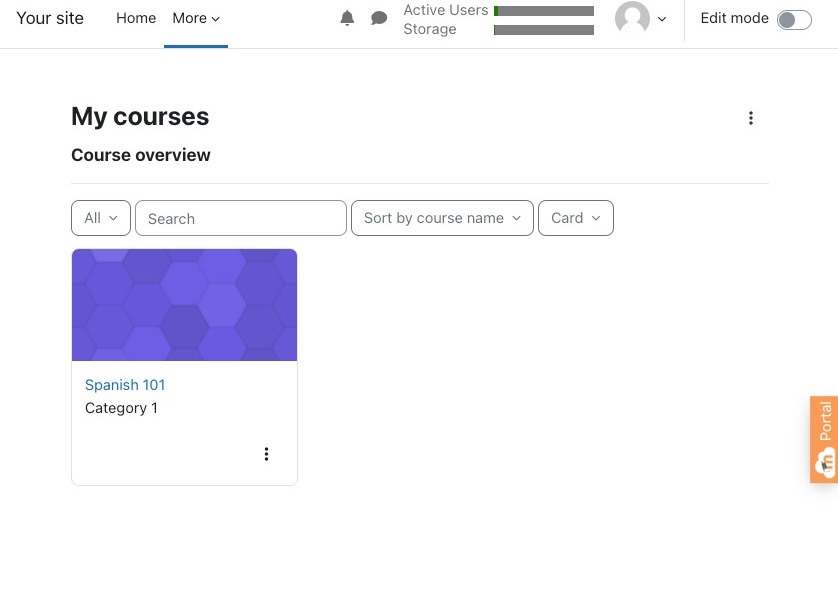
1. Log into Moodle with your Teacher user credentials. Navigate to the course in which you would like to use the KWL Hub (either through your Course Dashboard or through My courses in the top menu). Click on the course to open.
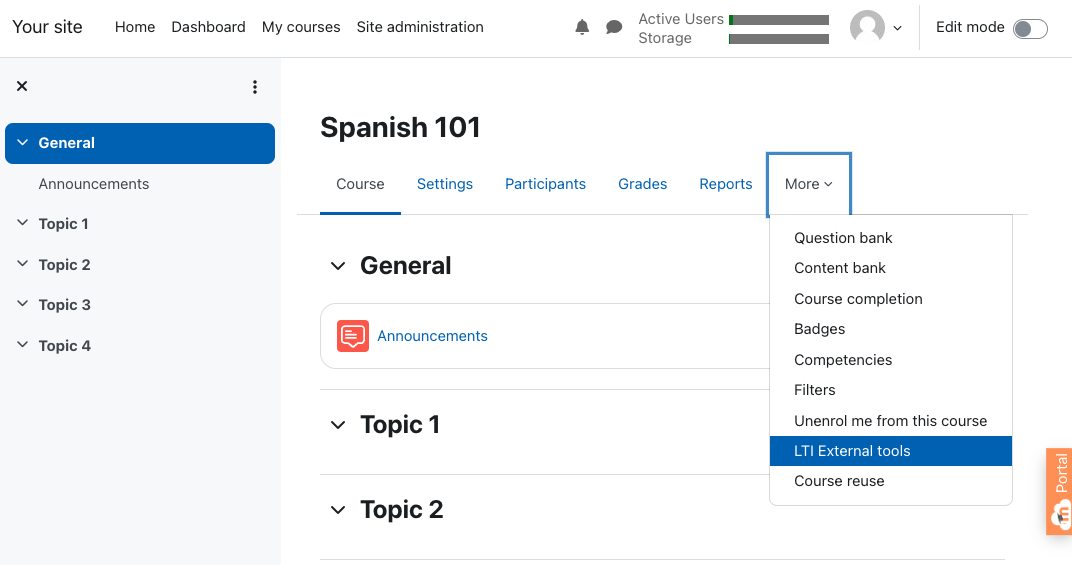
2. Once in the course, navigate to More → LTI External Tools in the course menu.
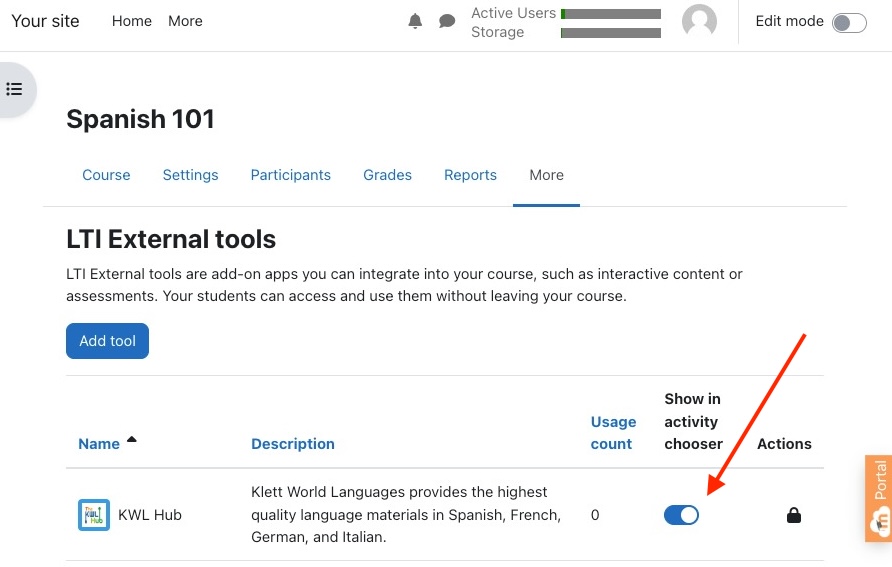
This brings you to a list of all LTI External tools that have been added by your administrator. Locate the KWL Hub app and click the slider button "Show in activity chooser" to enable the external tool.
- If you do not see the KWL Hub app listed here, contact your school admin (or the Moodle LMS admin for your school).
Creating assignments and activities with the KWL Hub app
1. To create assignments and activities with the KWL Hub app, navigate to your Moodle course and enable Edit mode by clicking on the slider button in the top right corner of the page.
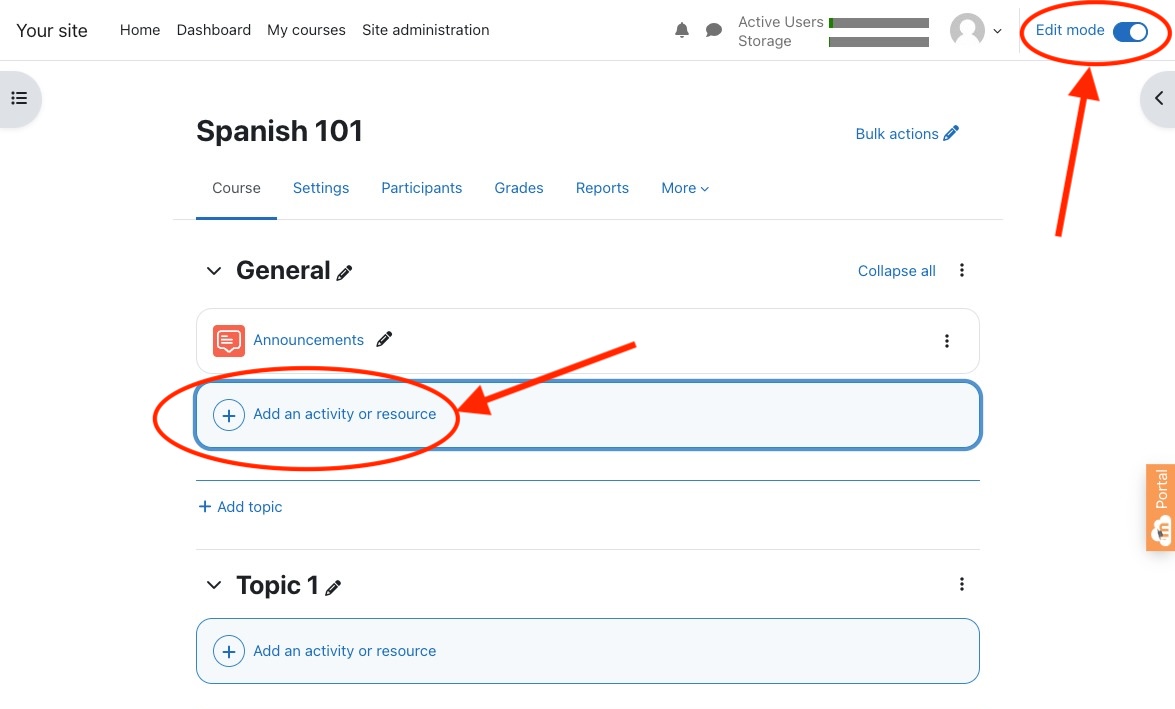
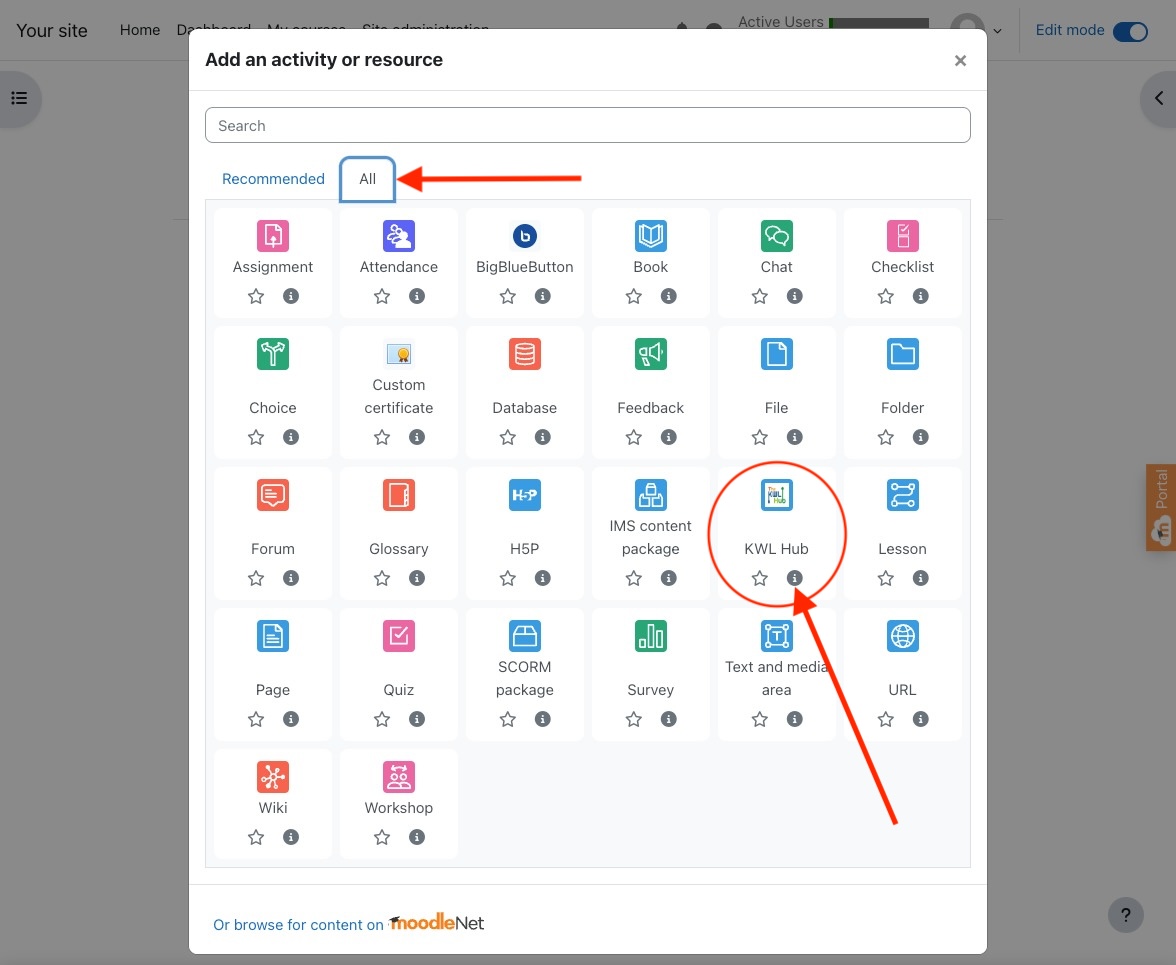
2. Underneath the course Topic where you would like to add the assignment, click ⨁ Add an activity or resource. In the popup window that opens, click on the All tab and then locate the KWL Hub app in your list of tools.
- Note that your app's name and icon may appear slightly differently depending on how your school administrator has configured it. If you cannot find your app as listed, contact your school administrator (or Moodle LMS admin).
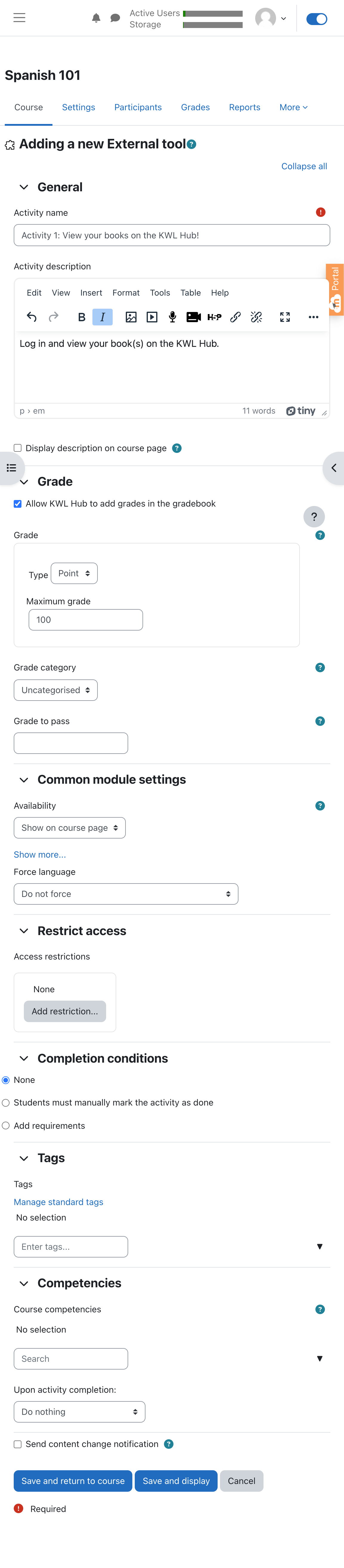
3. Enter an Activity name and (optional) an Activity description.
- The settings under the assignment creation submenus (Grade; Common module settings; Restrict access; Completion conditions; tags) may either be left as the default or configured as needed for your preferences.
- If you would like to allow Grade passback, you must click the checkbox "Allow KWL Hub to add grades in the gradebook."
Need help? 
Remember, you can contact us this support form. We are here to help!
Related Articles
Teacher Guide: Accessing The KWL Hub via Google Classroom
https://support.thekwlhub.com/en/articles/15-how-to-access-the-kwl-hub-via-google-classroom Overview This guide for teachers describes how to sync your classes between Google Classroom and The KWL Hub. Prerequisites: Your school must have an active ...Teacher Guide: The KWL Hub and Canvas
Accessing the KWL Hub via Canvas Creating assignments with Canvas (Deep Linking) Importing Grades into Canvas Accessing the KWL Hub via Canvas 1. In Course Navigation, navigate to the Assignments tab. 2. Click on the assignment title "KWL Hub" or ...Teacher Guide: How to access The KWL Hub via Clever
https://support.thekwlhub.com/en/articles/29-how-to-access-the-kwl-hub-via-clever School/district users can log in with Clever SSO via their preferred entry point. This allows school users to easily log in to The KWL Hub platform without entering ...Assign/Unassign an Assignment - The KWL Hub
https://support.thekwlhub.com/en/articles/225-assign-unassign-an-assignment Assign an Assignment Once an assignment has been created, the teacher needs to assign it to their Class(es), Student(s), or Group(s). ❗ Note: If the assignments are not ...Creating a New Assignment in the KWL Hub
https://support.thekwlhub.com/en/articles/223-create-a-new-assignment There are two ways of creating assignments: from the "Assignments" section and from the Interactive Content: Creating Assignments from the "Assignments" Section Creating ...